Guide
How to scan documents on Samsung and Android
On a Samsung Galaxy, open the Camera, point it at the page and tap the Scan button that appears. On any Android phone, Google Drive can scan as well: open Drive, tap the camera button and take a picture of the page.
Scan with the Samsung Camera app
- Open Camera and stay in Photo mode.
- Point the camera at the page. When the page is recognised, a Scan button appears.
- Tap Scan, adjust the corners if needed and tap Save.
The scan is saved to Gallery as an image, not a PDF. If the Scan button never appears, open the Camera settings and turn on the document scanning option. Its name depends on your One UI version: look for Scan documents and text, or Scene optimizer and then Document scan. Some Galaxy models do not have it.
Scan with Google Drive
- Open the Google Drive app and tap the camera button at the bottom right.
- Point the camera at the page. A blue line shows the area that will be kept.
- Take the photo, or let Auto capture take it for you.
- Adjust the crop or filter if you need to. Tap Add to scan another page.
- Tap Done, name the file, choose .pdf and tap Save.
The file is saved to your Google Drive, so it is uploaded to your Google account.
Scan with DafScan
- Open DafScan and tap Scan.
- Hold your phone over the page and capture it. The edges are found, and the page is cropped and straightened.
- Scan more pages if you need them, check the result and tap Save.
- Open the document and tap Share PDF to send it by mail or message, or to save the file.
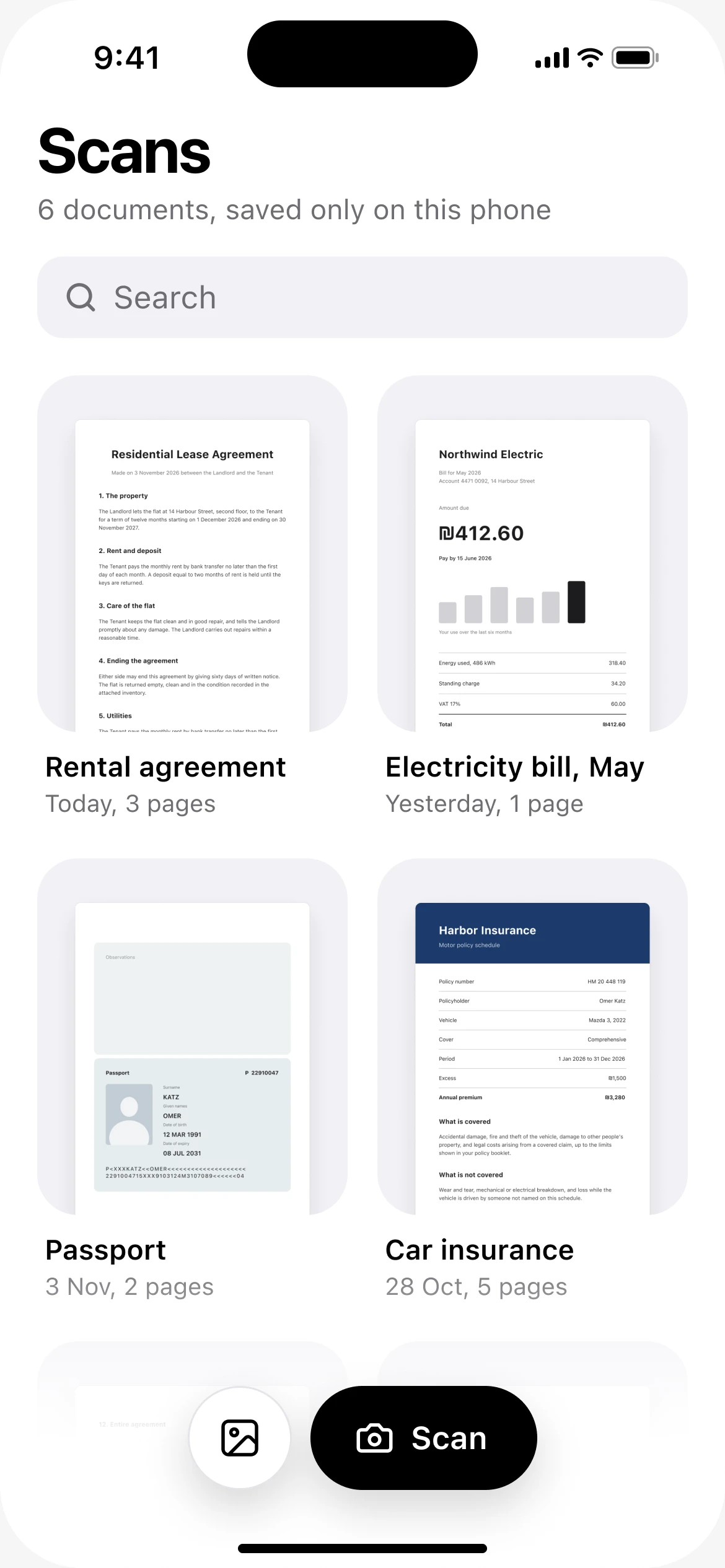
Tap Scan 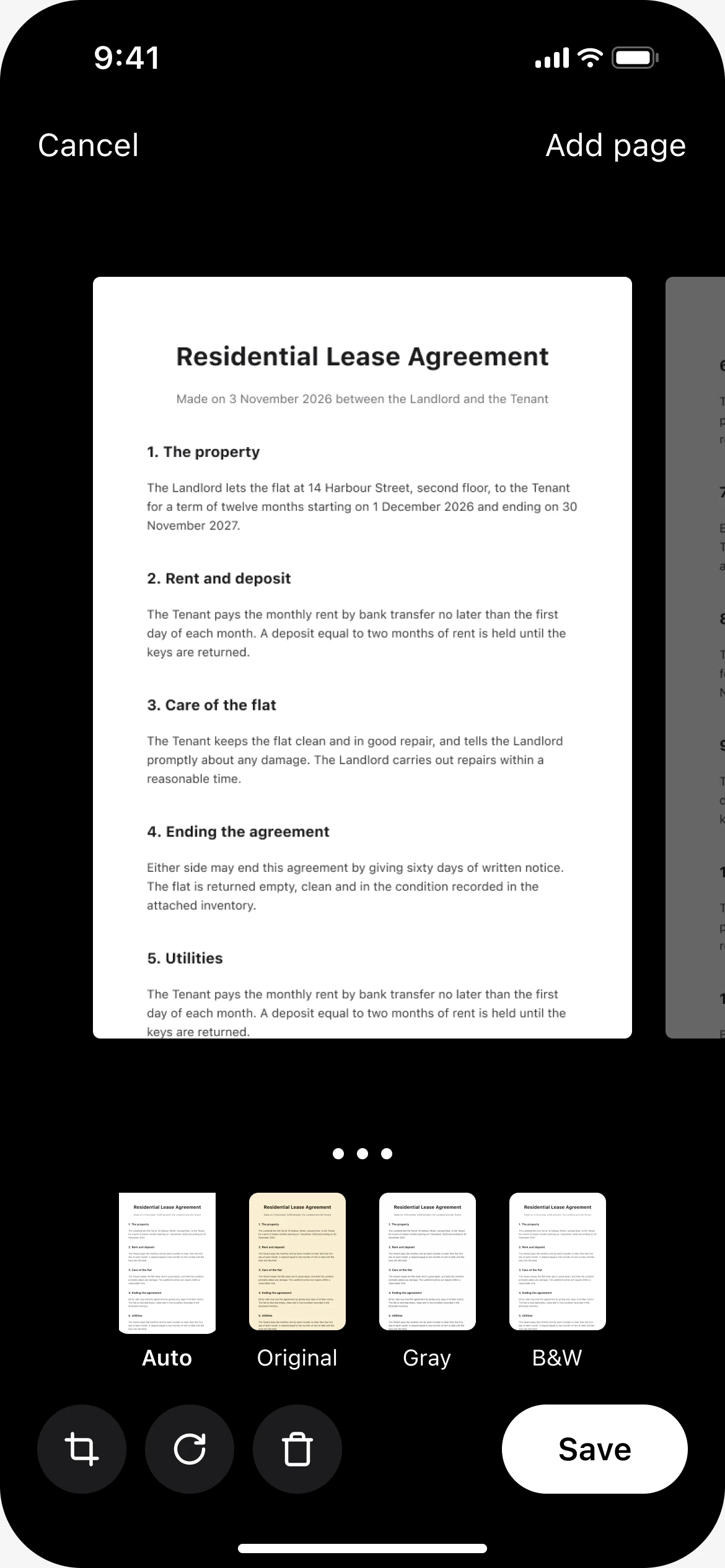
Check the pages and save 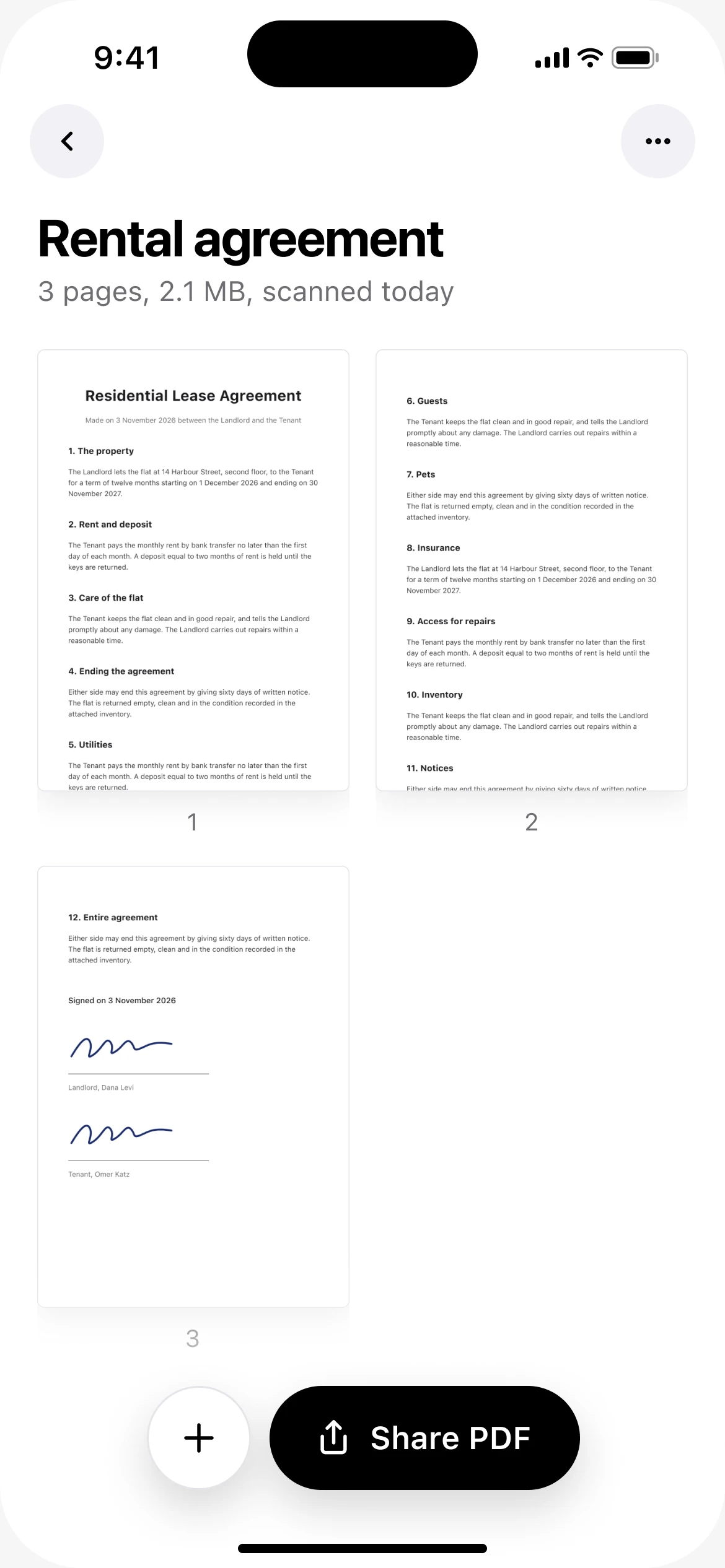
Share the PDF
DafScan is free, with no ads and no account. Every scan is kept as a document on your phone and is never uploaded. You get a PDF without the file passing through a cloud drive first.
Tips for a clean scan
- Put the page on a flat surface that is darker than the paper, so the edges are easy to find.
- Use even light. Daylight from a window works better than a lamp right above the page.
- Hold the phone flat above the page, not at an angle, and keep your shadow out of the picture.
- Smooth out folds first. Creases show up as dark lines in the scan.
Questions
Do Android phones have a built-in scanner?
Most do, through Google Drive, which is installed on most Android phones. Samsung Galaxy phones can also scan from the Camera app.
Where is the Scan button on a Samsung phone?
In the Camera app, in Photo mode. It appears when the camera recognises a page. If it never shows up, turn on document scanning in the Camera settings. Some models do not have it, and a scanner app works on any phone.
Does Google Drive upload my scan?
Yes. A Drive scan is saved to your Google Drive. If you want the scan to stay on the phone, use an app that stores it locally, such as DafScan.
How do I scan a photo that is already in my gallery?
Use a scanner app that can import pictures. In DafScan, tap the photo button next to Scan and pick the picture. It becomes a page you can share as a PDF.
Updated November 2026