Guide
How to scan documents on iPhone
Your iPhone has a scanner built in. Open Notes, tap the paperclip, choose Scan Documents and point the camera at the page. If you want each scan saved as its own PDF document, use Files or a scanner app such as DafScan.
Scan with the Notes app
- Open Notes and open a note, or create a new one.
- Tap the attachment button (the paperclip), then tap Scan Documents.
- Hold the page in view of the camera. In Auto mode the scan is taken for you. Otherwise tap the shutter button, drag the corners to fit the page and tap Keep Scan.
- Scan more pages if you need them, then tap Done.
The scan is stored inside the note. That is handy for something you want to keep with your notes, and less handy when you need to find or send the file later.
Scan with the Files app
- Open Files and tap the More button (the three dots).
- Tap Scan Documents and scan the page the same way as in Notes.
- Tap Done, choose a folder, then tap Save.
This gives you a file in the folder you picked, which is easier to attach to an email or upload to a form.
Scan with DafScan
- Open DafScan and tap Scan.
- Hold your phone over the page and capture it. The edges are found, and the page is cropped and straightened.
- Scan more pages if you need them, check the result and tap Save.
- Open the document and tap Share PDF to send it by mail or message, or to save the file.
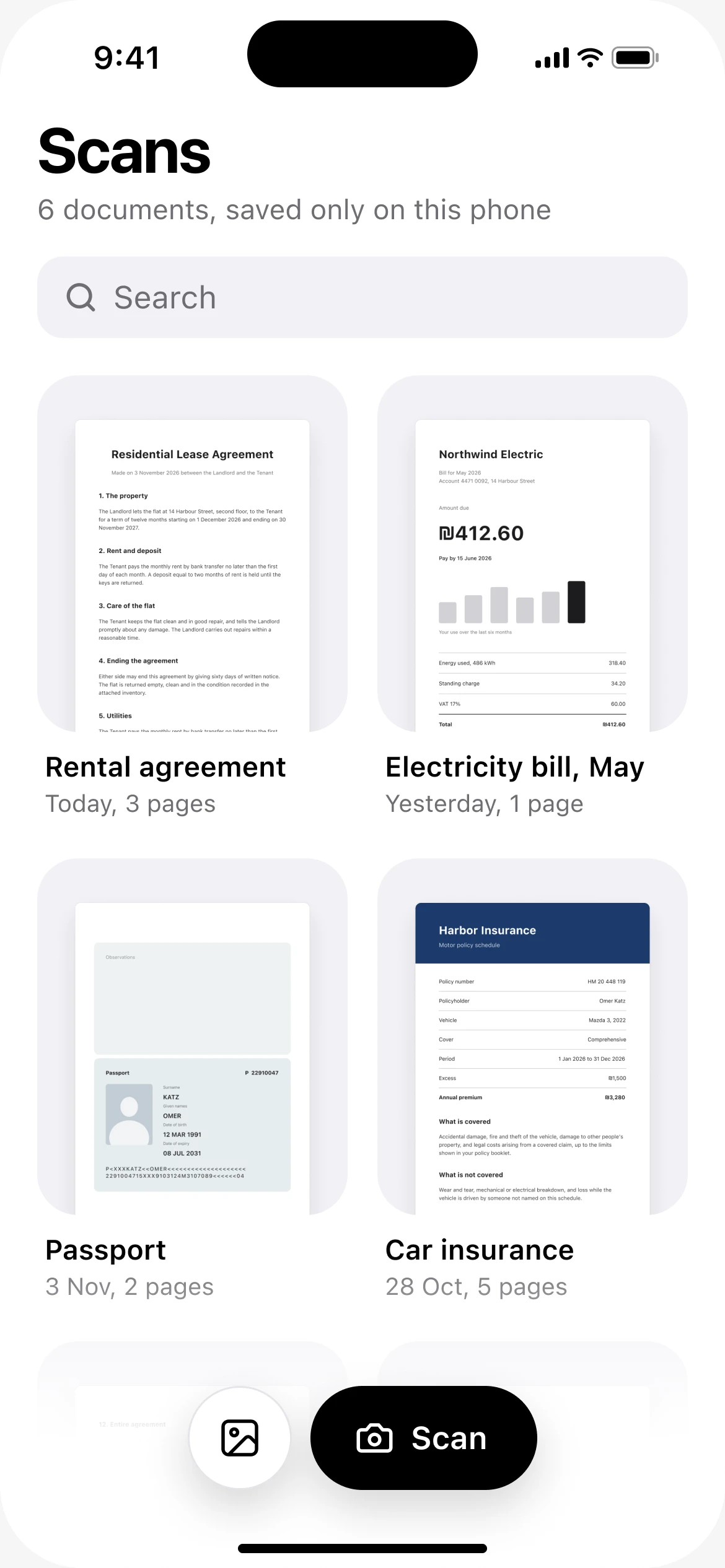
Tap Scan 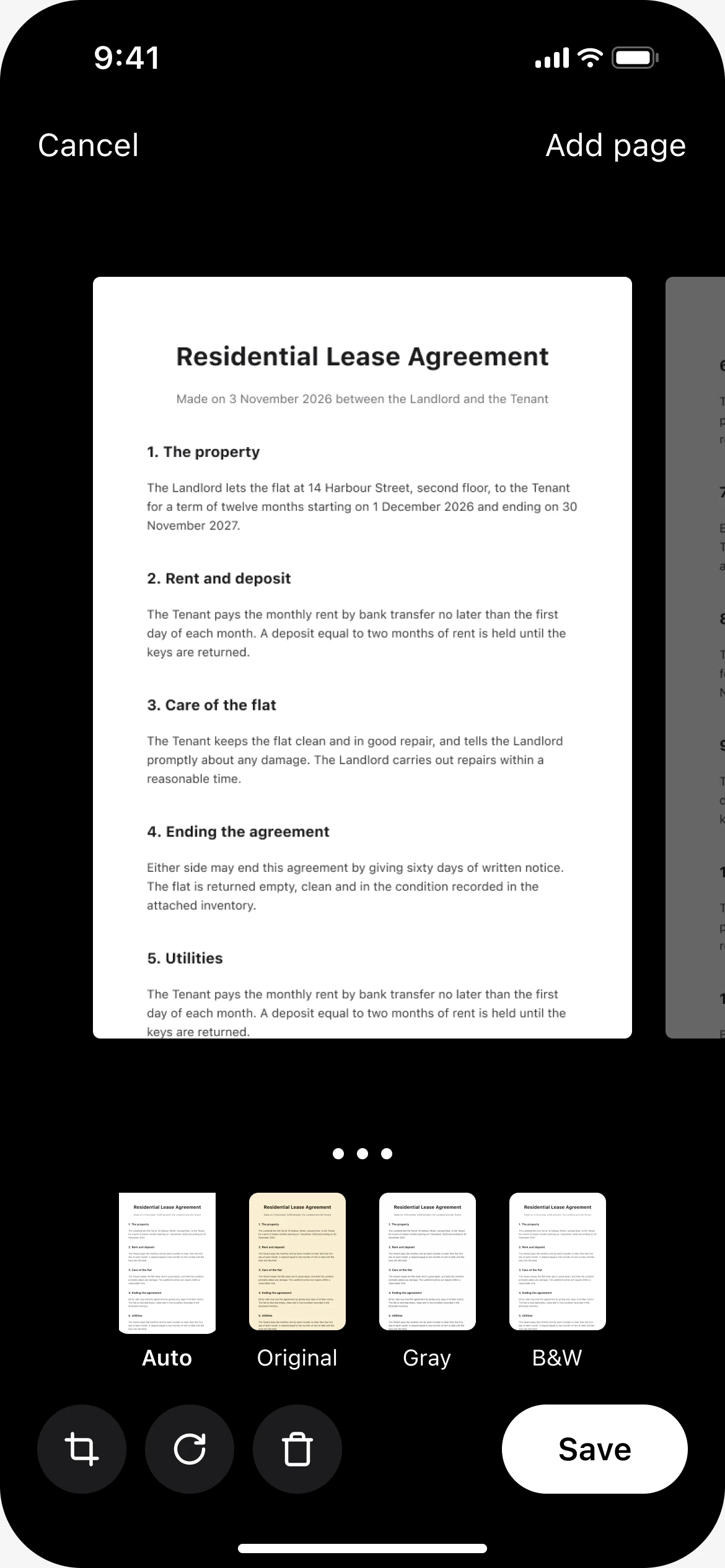
Check the pages and save 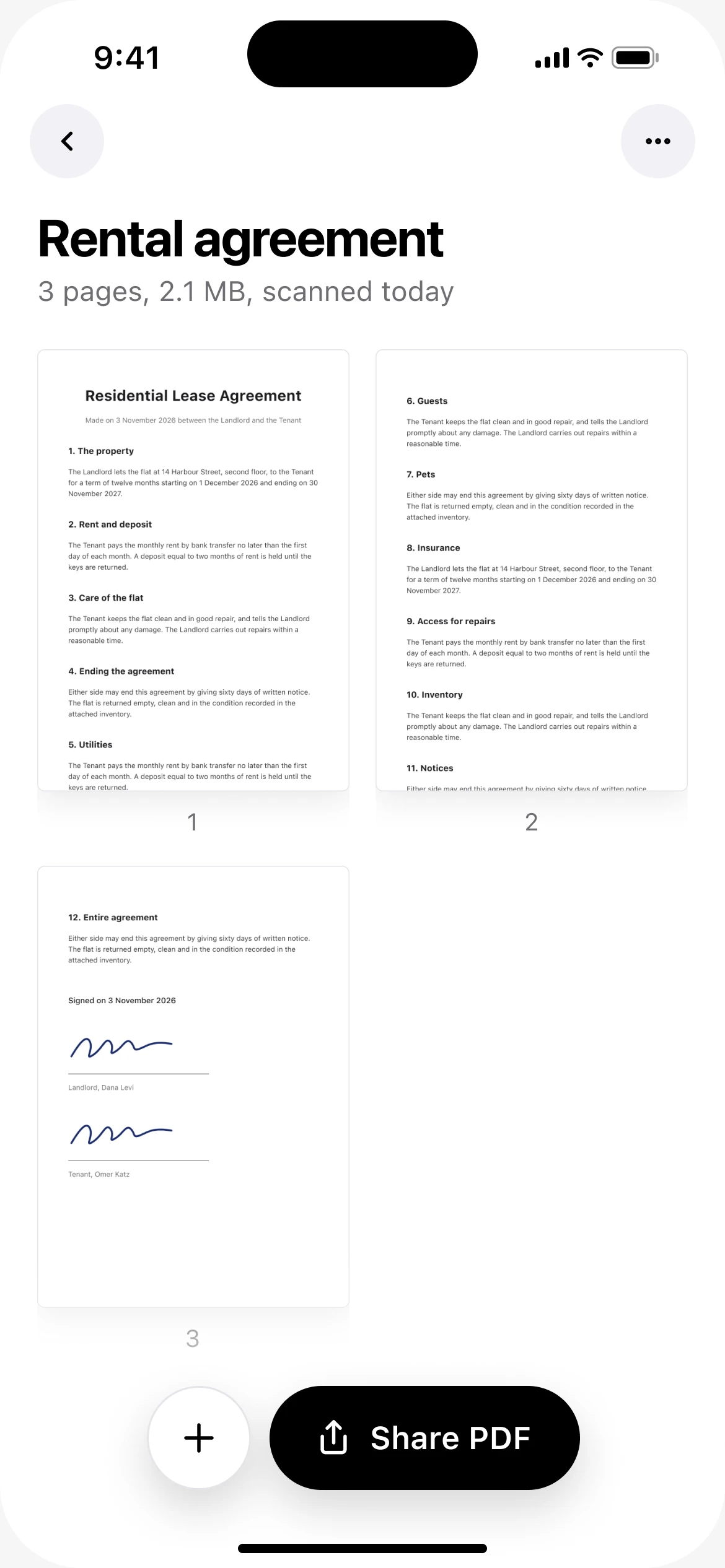
Share the PDF
DafScan is free, with no ads and no account. Every scan is kept as a document on your phone and is never uploaded. Your scans sit in one grid, so the lease you scanned in March is two taps away.
Tips for a clean scan
- Put the page on a flat surface that is darker than the paper, so the edges are easy to find.
- Use even light. Daylight from a window works better than a lamp right above the page.
- Hold the phone flat above the page, not at an angle, and keep your shadow out of the picture.
- Smooth out folds first. Creases show up as dark lines in the scan.
Questions
Does the iPhone have a built-in scanner?
Yes. Both the Notes app and the Files app can scan documents with the camera. You do not need to install anything.
Is scanning on iPhone free?
Yes. Notes and Files are part of iOS, and DafScan is free with no ads and no subscription.
Where do my scans go?
A Notes scan is stored in the note. A Files scan goes to the folder you choose. A DafScan scan is kept in the app, on your phone.
What is the best free document scanner app for iPhone?
For an occasional scan, the scanner built into Notes or Files is enough. If you scan often and want every scan kept as a PDF document, with no ads and no account, try DafScan.
How do I scan a document and email it from my iPhone?
Scan it, open the scan and tap the share button, then choose Mail. The scan is attached to a new message.
Updated November 2026